
This information is general so images may not look exactly like your catalogue because there are different versions for colleges, high schools, primary schools and DECYP specialist libraries. Please ask your library staff for help.
Icon searches
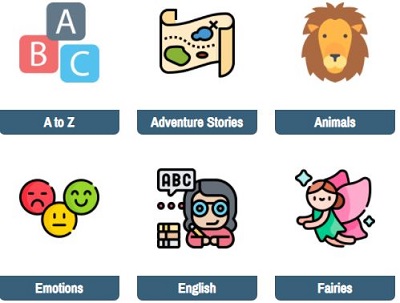
You can quickly do a search by clicking an icon from the catalogue home page.
Some search icons have a sub-menu with more icons. Click the icon that is the best match for your needs.
Simple word searches

Enter the search words into the search box at the top of the screen and press the enter key or click search icon. The search icon is the magnify glass on the right-hand side of the search box.
Search results
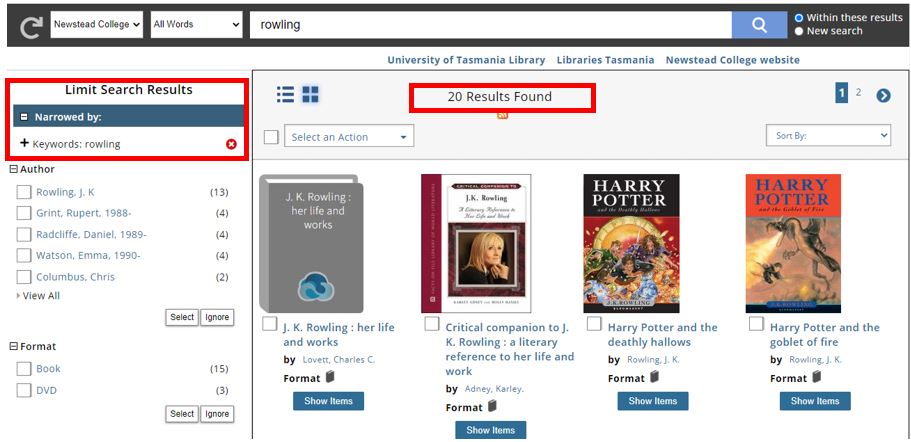
If your search finds potential matches, you will see a list of search results.
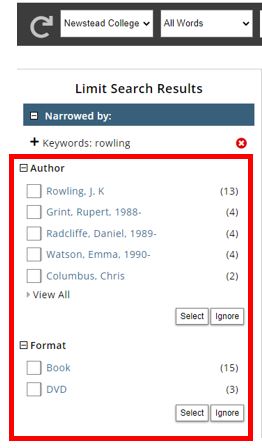
The categories listed on the left can be used to narrow the search results. Categories can be expanded by clicking the plus sign icon and collapsed by clicking the minus sign icon.
Click on the relevant categories box(es). Then click the Select button to filter the search by the selected categories or the Ignore button to remove the categories from the search. You can select a single limit by clicking on that particular limit’s name.
Each category when expanded will display up to the five limits. Click on View All to display all limits available.
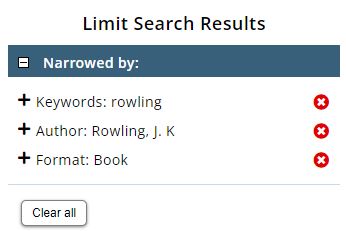
To remove any limit(s) applied to filter the search results click the cross icon on the right of the limit(s). All limits applied can be removed by clicking the Clear all button.
How to find the location of an item
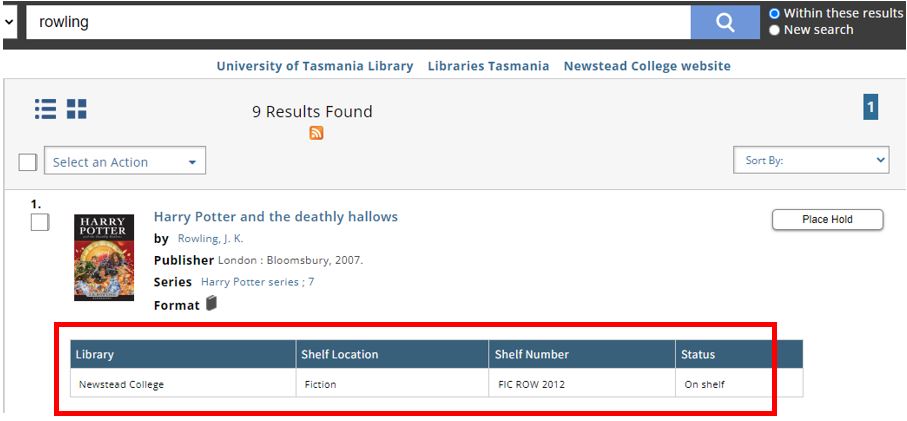
The location of the item may be visible from the search results list.
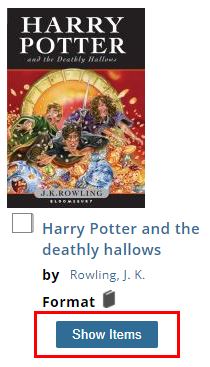
If an item listed in the search results and has a Show Items button, click it to see where an item is located.
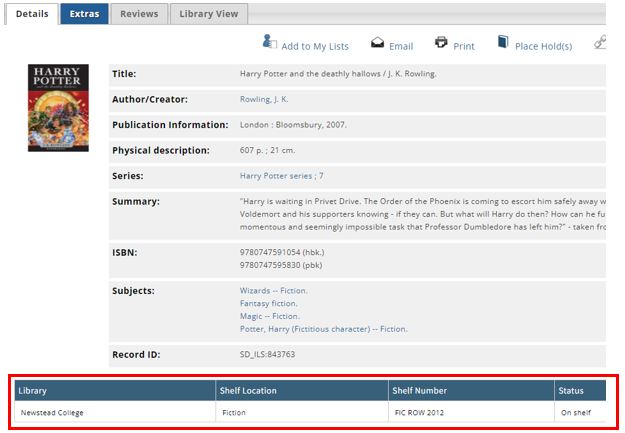
Click the cover or title of a search result to go to the Details tab to see where an item is located.
Searching specific fields
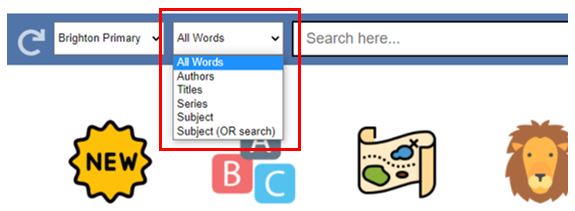
From the catalogue home page use the search box at the top of the screen. Click on the All Words drop-down menu to select which field you want to search by. You can choose to search by specific authors, titles, series or subject.
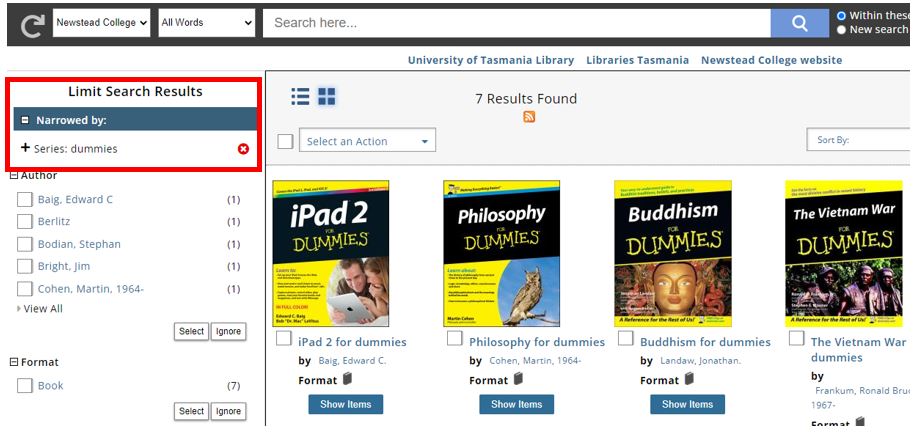
For example, click on All Words drop-down menu and select Series. Enter “dummies” in the search box. Any items in the “For Dummies” series will be returned.
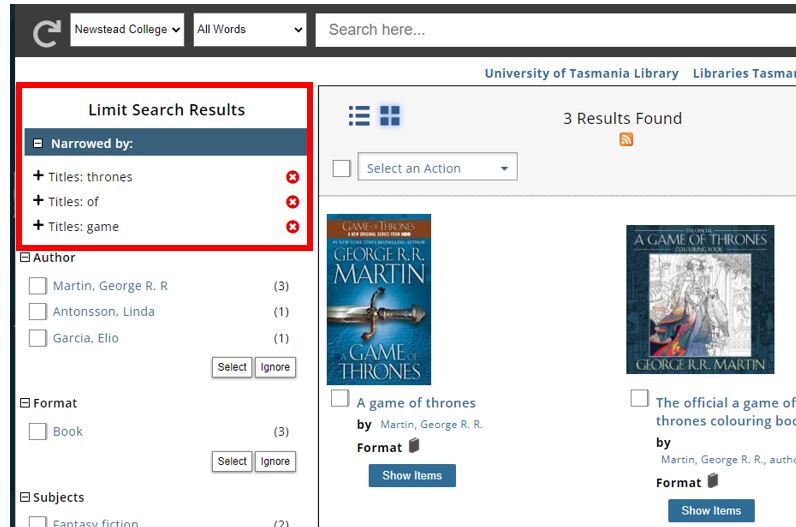
For example, click on All Words drop-down menu and select Title. Enter “game of thrones” in the search box. Any items in the “Game of Thrones” series will be returned.
New searches
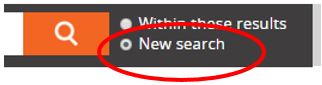
To start a new search, you can:
- Click New Search to the right of the search icon. The search icon is the magnify glass on the right-hand side of the search box. Then enter the new search words in the search box and press the enter key or click search icon.
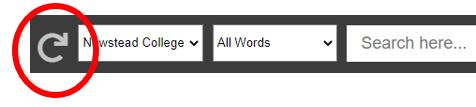
- At any time, you can clear your search and start your search again by clicking the reset icon. The reset icon is the arrow on the far left-hand side of the search box.
Sorting search results
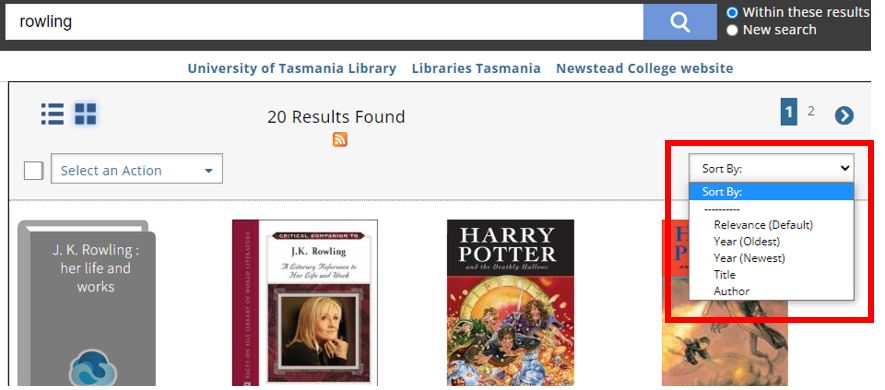
The default sort for all results is by relevance.
You can re-sort by Year, Title or Author using the Sort By: drop-down menu. The Sort By: drop-down menu is placed on the right-hand side below the search box and above the results found.
Changing the view
The icons to switch the search results between list and thumbnail view are placed above the search results at top left-hand corner.
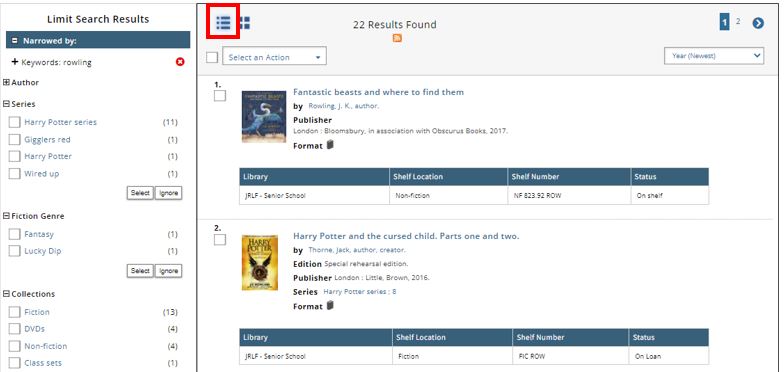
The list view will display results in a list of items with a tick box and image (where available).
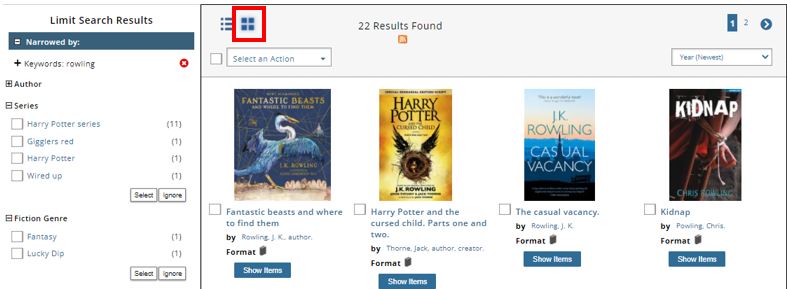
The thumbnail view will display as a grid with a tick box, item’s title and image (where available)
Click on the Show Items button to view the item’s Details tab.
Search result options
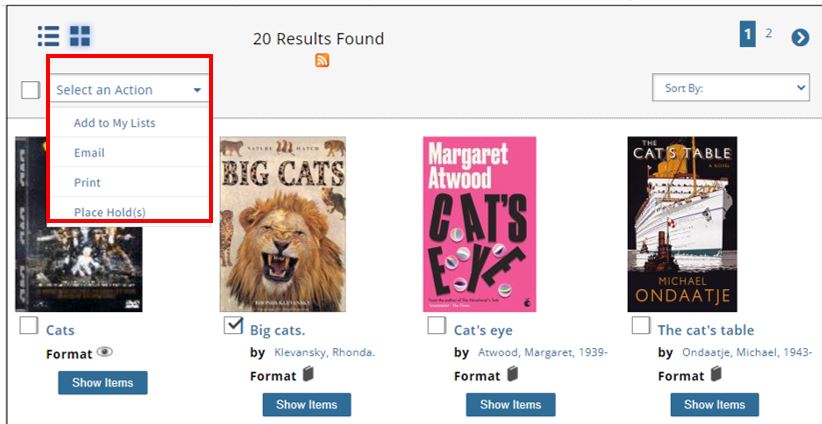
The Select an Action drop-down menu at the top of the results listing, allows you to perform the below actions on selected title/s:
- Add to My Lists adds the title(s) to a list, see My Lists.
- Email will send the title/s in an email message. You will be prompted to enter the email address and subject for the message.
- Print displays the titles on a new page in a printable format. To then print the new page, select print in web browser that you are using.
- Place a hold(s) on the title(s), see Placing holds.
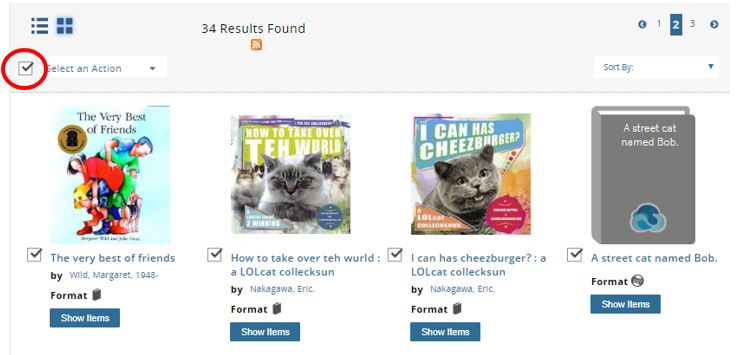
To select title/s from the results found click on the relevant box(es) beside each item.
You can select all search results on the page by clicking the box beside Select an Action.
Extras tab
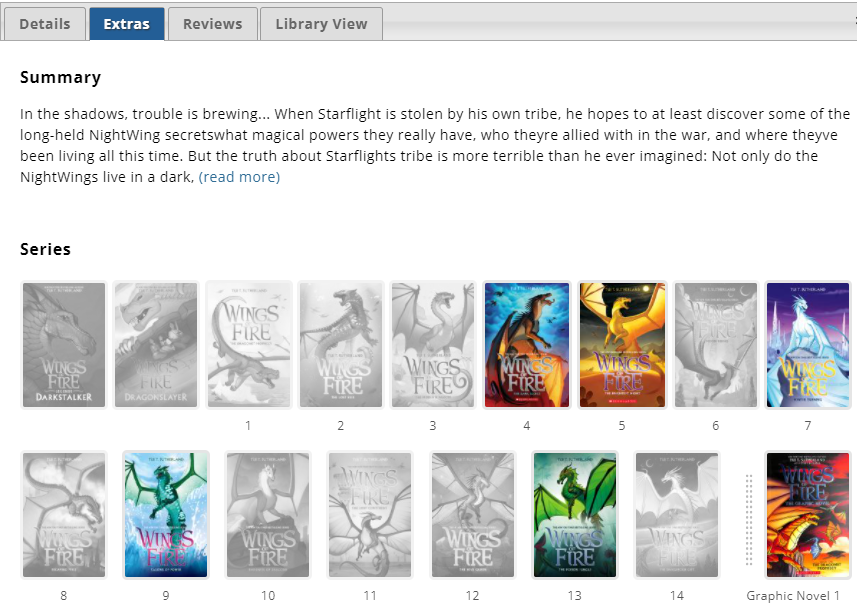
The Extras tab is a great way to find more information about a book and to find ‘read-a-likes’. Find the tab by searching for an item and then clicking on the cover or title.
Information is different for each book. You may find a summary, series information, author information, reading levels, similar authors suggestions, ‘you may also like’ suggestions and search tags.